Can You Use a USB-C to HDMI Cable Backward?
Usually, no. A cable that sends your laptop’s USB-C video to an HDMI monitor generally won’t send an HDMI device’s picture into a USB-C screen. Same plugs, different job.
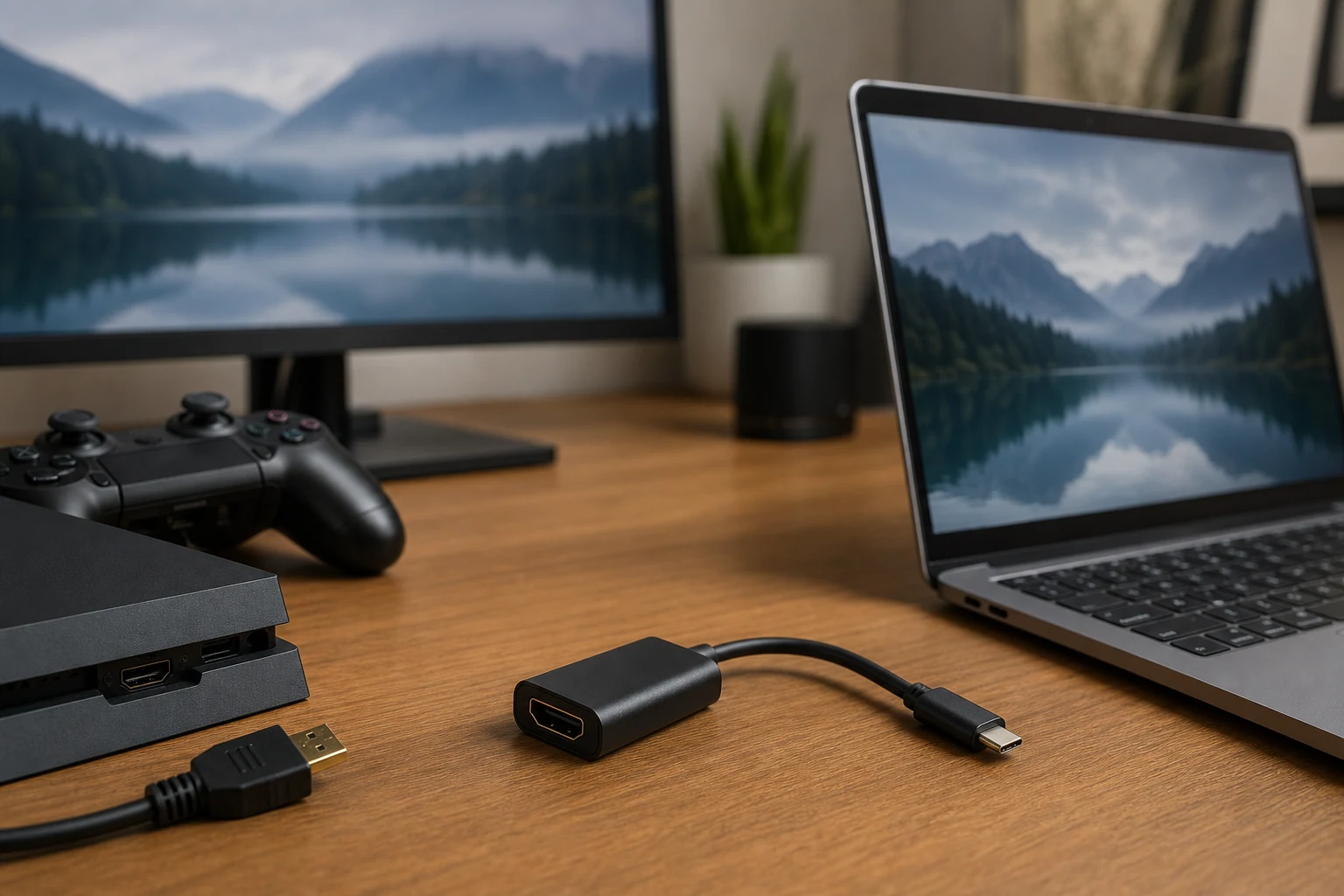
No, a typical USB-C to HDMI cable won’t work backward. It’s designed to take video from a compatible USB-C device and deliver it to an HDMI display. Connecting the HDMI end to a game console and the USB-C end to a monitor doesn’t reverse the conversion.
The connectors will still fit. Apparently, that was the easy part.
If you want to connect an HDMI source to a USB-C display, you need hardware explicitly designed for HDMI input to USB-C video output. Even then, the display’s requirements matter.
First, work out which device is sending the picture
Ignore the cable for a moment. Identify the source, which sends video, and the display, which receives it.
- USB-C laptop to HDMI monitor: This is the usual job for a USB-C to HDMI cable, provided the laptop’s USB-C port supports video output.
- HDMI console or desktop to USB-C monitor: This is the reverse direction. A normal USB-C to HDMI cable generally won’t do it.
- HDMI console to a laptop’s USB-C port: That usually won’t turn the laptop into a monitor, either. Most laptops don’t accept external video through that port.
Look for wording such as “source,” “input,” “display,” and “output” in the product documentation. A listing that merely says “HDMI USB-C cable” has named two connectors without answering the useful question.
Why turning the cable around doesn’t work
Most ordinary USB-C to HDMI adapters receive a DisplayPort video signal through the USB-C connection, commonly using DisplayPort Alt Mode, and convert it to HDMI.
That conversion has a direction. The electronics don’t automatically perform the opposite job because you’ve swapped which device is on each end.
A different connector shape isn’t the only issue. The video signal has to be converted correctly. Adding another adapter to make everything physically connect doesn’t establish that the devices can communicate.
Check the USB-C screen before buying anything
A USB-C socket doesn’t promise video input. On some monitors, it’s there for power, data, or servicing. On others, it accepts video but also needs a separate power connection.
Check the monitor’s manual for:
- Video input support: Does that specific USB-C port accept DisplayPort Alt Mode video, or does the display require a different connection, such as Thunderbolt?
- Power requirements: Can the display run from its own power supply? Does it expect power through the same USB-C connection that carries video?
- Supported picture modes: Does the proposed converter support the resolution and refresh rate you need?
This matters especially with portable monitors. A converter may produce a usable video signal without supplying enough power to run the screen. A black rectangle is not necessarily evidence that the video conversion failed.
What can actually work?
If the monitor has an HDMI input, use it. An HDMI-to-HDMI connection is the straightforward route. A portable monitor may use mini HDMI, so check the socket before ordering the cable.
Untested option: If the screen only accepts USB-C video, look for an active HDMI-to-USB-C display converter explicitly described as taking an HDMI source into a USB-C monitor. This is a compatibility route to investigate, not a recommendation of a tested product.
These converters commonly need a separate USB power connection. Follow the converter’s instructions, and don’t assume its power lead also means it can power the monitor.
Before buying, confirm compatibility with your exact display, including any Thunderbolt requirements. Also check any features you depend on, such as audio, protected streaming playback, or higher refresh rates. Getting a picture doesn’t guarantee every feature survives the conversion.
If you meant to use your laptop as the screen
A reverse-direction converter generally won’t solve that. The laptop needs a way to receive video, not just another cable plugged into an output-capable port.
A USB video capture device is a separate approach: it receives HDMI and lets software display the incoming picture. That isn’t the same as a direct monitor connection, and preview latency can make it unsuitable for responsive gaming.
The practical answer: Match the source to the display, then buy for that direction. If you already own an ordinary USB-C to HDMI cable, turning it around isn’t a hidden feature. It’s just turning it around.
The conversation
Have a thought? Add it below. Comments are reviewed before they appear.